
An enclosed printer isn’t automatically a heated chamber, and that difference matters when you’re printing polycarbonate. Understanding high temp polycarbonate printing chamber requirements means looking beyond whether a printer has a door. Stable conditions, material settings and hardware limits all affect whether a part prints cleanly or warps and loses strength between layers.
If you’ve found conflicting advice about whether an enclosure is enough, the reason is often that polycarbonate filaments have different requirements, especially when they include additives. One printer setting won’t suit every spool. Match the filament manufacturer’s data sheet to your printer’s documented capabilities instead of assuming that a hotter chamber is always better.
This guide explains how to assess chamber temperature and stability, distinguish passive enclosures from actively heated chambers, and check your hot end, build plate and other limits before printing. You’ll also find a practical checklist for reducing warping and layer-bonding problems, along with safety considerations to review in the material’s handling guidance. These checks can help you choose suitable filament and set up your equipment with more confidence.
Key Takeaways
- Use the exact filament data sheet to find temperature and handling guidance for your polycarbonate spool.
- Understand how a passive enclosure differs from an actively heated chamber, then choose the setup that fits your print and printer.
- Compare the high temp polycarbonate printing chamber requirements with your printer’s documented chamber, nozzle and build-plate limits.
- Check filament condition, chamber stability, build preparation and safe operating guidance before starting a print.
- Use a monitored test print to assess your setup. If hardware or performance issues persist, address them before relying on the workflow.
Why High-Temp Polycarbonate Printing Needs the Right Chamber Conditions
Polycarbonate (PC) can produce strong, heat-resistant parts, but the way a print cools matters. The high temp polycarbonate printing chamber requirements aren’t one fixed temperature. They depend on the filament formulation, printer design, and the part’s size and shape. Start with the exact filament data sheet, then compare its guidance with your printer manufacturer’s documented limits.
An enclosure surrounds the build area and helps limit drafts; a heated chamber actively controls the air temperature around the print. An enclosure may retain warmth from the bed and hot end, but that doesn’t mean it can maintain a set chamber temperature.
What Does a Polycarbonate Printing Chamber Actually Do?
The chamber is the space around the build area. It may be open to the room, inside a passive enclosure or in an actively heated system. By reducing drafts and slowing uneven cooling, an enclosure can help a part cool more consistently. This matters because temperature differences across a part can increase the chance of distortion as the material contracts.
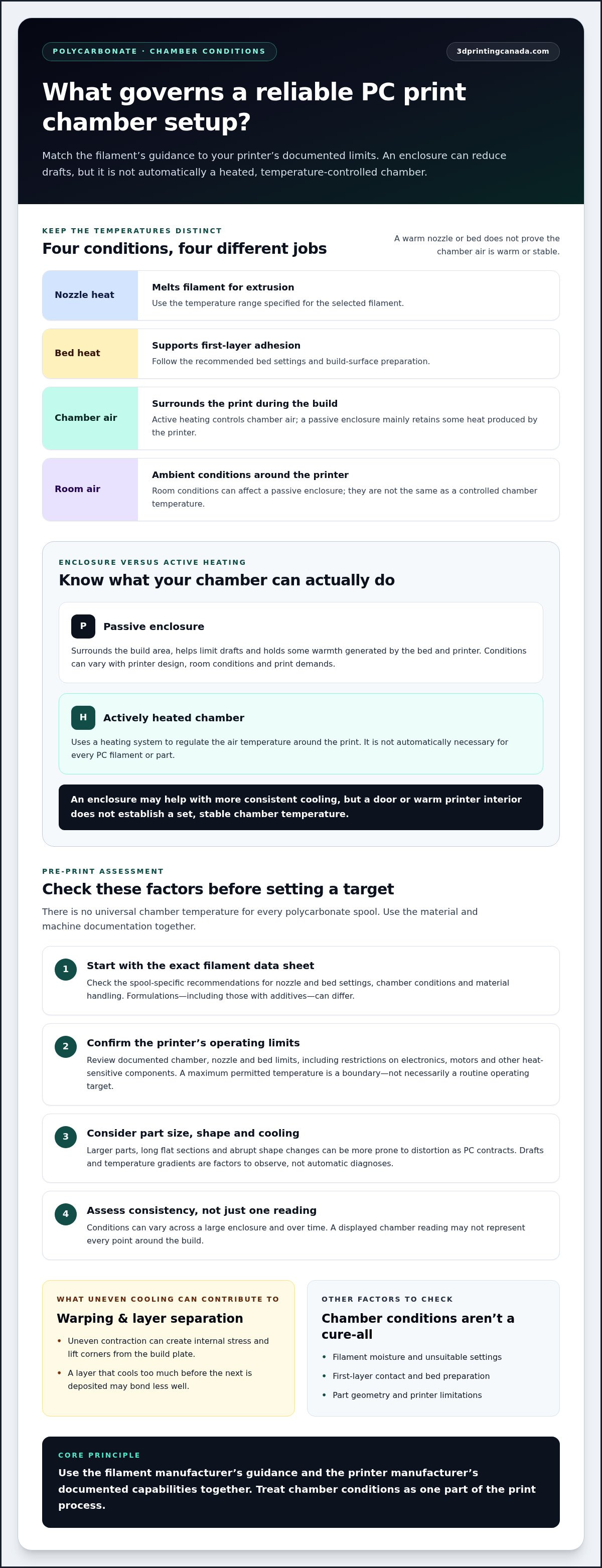
Keep the different temperatures straight. Nozzle temperature melts the filament, bed temperature supports the first layers, chamber air temperature describes the environment around the print, and room temperature is the surrounding ambient condition. A warm bed or hot nozzle doesn’t prove that chamber air is warm or stable. There’s no universal chamber temperature for every PC filament, so follow the manufacturer’s recommendations rather than applying a generic target.
Why Can Polycarbonate Prints Warp or Delaminate?
As PC cools, it can shrink. If a larger part cools unevenly, different areas may contract at different rates and create internal stress. This can contribute to corners lifting from the build plate or layers separating, particularly on parts with long, flat sections or abrupt changes in shape. Drafts and temperature gradients are worth observing, but they don’t automatically identify the cause. Bed preparation, settings and geometry matter too.
Layer adhesion is the bond between one deposited layer and the next. If a layer cools too much before the next one is laid down, the new material may not bond as well. A suitable, stable chamber environment can support more even cooling, but it can’t prevent every failure. Moisture in the filament, unsuitable settings, poor first-layer contact or printer limitations can also affect results. Treat chamber conditions as one part of the process, not a cure-all.
How Chamber Temperature, Stability, and Printer Limits Affect PC Prints
Chamber temperature is only one part of a polycarbonate setup. The bed, nozzle and air around the part each play a different role. A printer’s ability to reach a temperature doesn’t automatically mean it’s designed to run there continuously. For reliable high temp polycarbonate printing chamber requirements, use the exact filament data sheet alongside the printer manufacturer’s operating limits.
The filament data sheet and printer limits govern target conditions. Treat product documentation as material- and machine-specific guidance, not as universal settings for every PC spool or printer.
- Nozzle heat melts the filament for extrusion. Follow the range specified for the selected filament.
- Build-plate heat helps the first layers adhere to the build surface. Use the recommended bed settings and surface preparation.
- Chamber heat describes the air surrounding the build. Active heating controls it; a passive enclosure retains some heat produced during printing.
- Temperature consistency describes how evenly conditions are maintained over time and across the build area. A displayed chamber reading may not represent every point in a large enclosure.
How Do Heated Chambers Differ From Passive Enclosures?
An actively heated chamber uses a heating system to regulate chamber air. A passive enclosure mainly contains the build area and holds some warmth generated by the bed and printer. Its temperature can vary with printer design, room conditions and the demands of the print. A passive enclosure may suit some PC filaments and parts; an actively heated chamber isn’t automatically necessary for every spool.
Watch for drafts and temperature gradients, which are differences in conditions across the chamber or part. They’re useful variables to observe, not automatic diagnoses for warping or layer separation. Compare what you observe with the material and printer documentation before changing settings.
Which Printer Limits Should You Check Before Heating the Chamber?
Review the manufacturer’s documentation for the maximum chamber temperature and any limits affecting electronics, motors or other heat-sensitive components. Check the specified nozzle and bed limits as well. A maximum permitted temperature is a boundary, not necessarily a recommended target for routine operation. Don’t assume a printer can safely tolerate added heat just because it has an enclosure.
For a broader look at how printer speed and operating conditions fit together, read this guide to high-speed 3D printing trends. If you’re comparing equipment and materials for a PC workflow, explore 3D printers and filaments with these documented limits in mind.
Passive Enclosure or Heated Chamber: Which Setup Fits Your PC Print?
The right setup depends on the specific filament’s requirements and what the printer is designed to handle. An actively heated chamber offers more control over chamber air, but it isn’t automatically necessary or safe for every machine. Use the comparison below as a starting point, then match the high temp polycarbonate printing chamber requirements to the filament data sheet and printer documentation.
| Setup | Temperature control | Hardware and setup considerations | May suit |
|---|---|---|---|
| Open printer | Chamber air isn’t enclosed or actively regulated; the print is more exposed to room conditions and drafts. | Less enclosure-related setup, but limited protection from changing ambient conditions. | Filaments and parts whose documented requirements can be met without an enclosure. |
| Passive enclosure | Contains some heat produced during printing, but doesn’t actively set chamber temperature. | Temperature can vary with the printer, room and print. Check that enclosed operation is supported by the printer manufacturer. | Prints for which draft protection and retained heat suit the filament and machine. |
| Actively heated chamber | A heating system regulates chamber air, subject to its control and operating limits. | More components and controls to manage. Confirm the printer is designed for the intended chamber conditions, including the limits of heat-sensitive parts. | Prints whose material requirements and geometry call for controlled chamber heat, provided the printer supports it. |
Temperature figures aren’t universal defaults. Any range used to plan a print should come from the selected filament’s documentation and the printer manufacturer’s guidance. A higher chamber temperature isn’t always better: exceeding a printer’s permitted conditions can put electronics, motors or other components at risk. Stay within documented limits.
When Might a Passive Enclosure Be Sufficient?
A passive enclosure may be enough when the exact PC formulation’s instructions can be met by reducing drafts and retaining heat from the print process. Don’t assume the enclosure reaches a particular temperature. Monitor conditions during a test, and account for differences in printer design, room conditions and print jobs before settling on a setup.
When Is Active Chamber Heating Worth Considering?
Consider active heating if the filament guidance, part size or geometry points to a need for more controlled chamber conditions. First confirm that the printer is designed to operate at the intended temperature. Active control can improve consistency, but it adds complexity and may expose unsupported components to heat. Treat it as a setup choice, not a universal upgrade.
For repeatable results, pair suitable 3D printers and filaments by documented capability, then test the setup within the stated limits.
A Pre-Print Checklist for High-Temp Polycarbonate Chamber Requirements
Use this sequence before trying a new PC filament or print setup. The high temp polycarbonate printing chamber requirements depend on the exact material and printer, so record the values and limits in their documentation rather than relying on generic defaults.
Before printing polycarbonate, verify the material, confirm the machine’s limits, prepare the filament and build, check chamber conditions, and finish with a monitored test print.
What Should You Verify in the Filament and Printer Documentation?
- Start with the filament data sheet. Note the recommended nozzle, bed and chamber conditions for the exact formulation. Check the manufacturer’s guidance for filament storage, drying and handling, too.
- Check the printer documentation. Confirm the machine supports the required material and enclosure configuration. Record permitted temperatures for the chamber, hot end, bed, electronics, motors and other heat-sensitive components. Don’t treat a maximum limit as a routine target.
- Review safe-operation instructions. Follow the material safety documentation for ventilation and handling. Make sure the intended setup complies with the printer manufacturer’s safety guidance; don’t modify electronics or bypass built-in protections.
How Can You Check Chamber Performance Before a Large Print?
- Assess the filament’s condition. Check its storage history and look for visible signs of contamination or damage. If the manufacturer provides drying instructions, follow them before printing.
- Prepare the machine and build. Confirm the nozzle and build surface are clean, the build plate is prepared as recommended, and the part is positioned and supported appropriately. Check that the planned settings stay within documented printer limits.
- Observe chamber conditions. Use a suitable temperature sensor to monitor the air around the build area over time. Note fluctuations, drafts or differences across the space. These observations can guide adjustments, but they don’t prove a specific fault.
- Run a small, monitored test print. Record the filament, settings and chamber readings. Observe first-layer adhesion, corner lift and layer separation, then change one variable at a time before committing to a larger part.
Warping, poor first-layer contact or inconsistent readings are observable clues. Recheck filament condition, setup and documented settings first. Persistent unusual noises, movement problems, temperature-control errors or apparent electrical faults point beyond routine print adjustments. Stop operation if safety is in question, and don’t attempt internal repairs unless you’re qualified to do so.
If recurring hardware or performance issues are getting in the way of a reliable workflow, 3D Printing Canada provides professional 3D printer repair services.
Choose Polycarbonate Materials and Printer Support for Repeatable Results
Repeatable PC printing starts with a practical match: choose a filament based on its published requirements, then confirm your printer can meet them within its documented operating limits. The high temp polycarbonate printing chamber requirements for one formulation may not suit another, so don’t assume a single printer setup works for every polycarbonate spool.
How Should You Match a PC Filament to Your Printer?
Compare the exact filament data sheet with the printer’s specifications for nozzle, bed and chamber conditions. Consider the part, too. A large print or one with broad, flat sections may respond differently to cooling than a small, compact part, while enclosure design affects how consistently the surrounding air holds heat. Choose a material and setup that fit both the print’s geometry and the printer’s stated capabilities.
Keep the manufacturer’s recommendations with your print notes. Recording the filament formulation, settings, enclosure setup and observed results gives you a clearer basis for repeating a successful job or making a careful adjustment. Change one variable at a time, and stay within the printer’s safe operating instructions.
What Can Help Keep Chamber Performance Consistent?
Follow the printer manufacturer’s maintenance guidance for sensors, fans and enclosure components. Track chamber observations and print outcomes over time. If a sensor reading shifts, compare it with the print results and other operating observations before deciding whether the cause is a process change or a hardware issue.
Keep routine troubleshooting within documented limits. Persistent temperature-control errors, inconsistent hardware behaviour or other recurring performance problems may need qualified diagnosis rather than repeated setting changes. Consider professional 3D printer repair services when hardware issues affect chamber control or print consistency.
Build a dependable workflow by pairing suitable filament with equipment that supports its requirements, maintaining the printer and recording what works. Explore 3D printers and filaments to find materials and equipment suited to your printing workflow.
Build a More Reliable Polycarbonate Workflow
Reliable PC printing comes down to matching the material to the machine, then controlling what you can. Check the exact filament data sheet and your printer’s documented limits before choosing an open, enclosed or actively heated setup. Chamber conditions can support more consistent cooling, but part geometry, filament condition and print preparation also affect the result.
Use the pre-print checklist before moving to a large or demanding part. Monitor chamber conditions, keep notes on settings and results, and follow the manufacturer’s safety guidance. These practical steps turn high temp polycarbonate printing chamber requirements into a repeatable process rather than guesswork.
Choose materials and equipment that fit your workflow, and address persistent hardware issues before they undermine consistency. Explore the selection of 3D printers and filaments, or learn about professional 3D printer repair services. Browse 3D Printing Canada’s printers and filaments, or explore its repair services to support your next PC printing project.
Frequently Asked Questions
Does polycarbonate need a heated chamber for 3D printing?
Not always. Whether polycarbonate needs active chamber heating depends on the exact filament formulation, the part’s geometry and the printer’s design. A passive enclosure can help block drafts and retain heat, while a heated chamber actively controls chamber air temperature. Check the filament data sheet for material recommendations and the printer documentation for supported configurations and limits. Don’t assume every PC spool or print needs the same chamber setup.
What chamber temperature is required for polycarbonate printing?
There’s no single safe chamber temperature for every polycarbonate filament and printer combination. Follow the exact material manufacturer’s recommendations and stay within the printer’s documented chamber limits. Chamber air temperature is different from nozzle temperature and build-plate temperature, so don’t use one as a substitute for another. If you’re using an enclosure, monitor its conditions during printing rather than assuming it reaches or maintains a particular temperature.
Can you print polycarbonate in an enclosed 3D printer?
Yes, if the filament’s requirements and the printer’s design support that setup. An enclosure can reduce drafts and retain heat, but a passively enclosed printer doesn’t necessarily control chamber temperature. Before printing, check the manufacturer’s enclosure instructions and temperature limits for components such as electronics and motors. Confirm the selected filament’s requirements as well. An enclosure alone doesn’t establish that a printer is suitable for every polycarbonate formulation.
Is a heated chamber better than a passive enclosure for PC?
Not automatically. A heated chamber provides active control of chamber air, while a passive enclosure mainly limits drafts and retains heat produced during printing. Active heating may suit a particular filament or demanding part if the material guidance calls for controlled chamber conditions and the printer is designed for them. Compare the part’s needs with the printer’s limits. More chamber heat isn’t an improvement if it exceeds safe operating guidance.
What causes warping when printing polycarbonate?
Uneven cooling and material shrinkage can contribute to warping, especially in parts whose size or geometry makes cooling inconsistent. Other factors can include poor bed adhesion, print settings and filament condition. Chamber stability is one part of troubleshooting, not a guaranteed fix. Check the filament and printer documentation, review the build preparation and observe the print. For test prints, change one setting at a time so you can tell which adjustment affects the result.
How do I know if my 3D printer can handle a heated chamber?
Check the printer manufacturer’s documentation for chamber limits and guidance covering electronics, motors, sensors and other components. A printer that can be enclosed isn’t necessarily designed for active chamber heating. Treat maximum permitted temperatures as boundaries, not routine targets, and don’t exceed stated operating limits. Never bypass built-in safety protections. If the documentation doesn’t support the intended conditions, don’t modify the machine to force it to operate beyond its design.
Does polycarbonate filament need special ventilation?
Ventilation and handling guidance can vary by filament formulation and printer setup, so follow the selected material’s safety documentation and the printer manufacturer’s instructions. Review any stated precautions before printing, and use the ventilation approach they specify. Don’t assume all polycarbonate filaments have identical guidance or choose a ventilation setup based on a generic rule. The product-specific documentation is the best starting point for safe handling in your workspace.