
APRENDIENDO A IMPRIMIR EN RESINA EN 2025
Tengo una pequeña confesión que hacer: nunca había usado una impresora de resina hasta ahora. En esta publicación les explicaré mi experiencia de primera vez al desembalar, configurar e imprimir con éxito con la Elgus Saturn 4 Ultra 16K, compartiendo los pasos prácticos, las sorpresas y los consejos que fui aprendiendo en el camino. Esto se basa en mi prueba práctica y en los breves tutoriales que vi antes, y cubriré cada paso clave, desde el desembalaje hasta el posprocesado.
¿Por qué probar la impresión en resina?
Después de años trabajando con impresoras FDM, desde Ender 3 para aficionados hasta grandes máquinas industriales, quería ver cómo se sentía la impresión en resina en 2025. La resina siempre ha sido conocida por su mayor nivel de detalle (y por ser más engorrosa), pero las máquinas y los flujos de trabajo modernos han madurado. Me preguntaba qué tan accesible sería la resina para alguien que se siente cómodo con FDM pero que es completamente nuevo en la fotopolimerización en cubeta.
Desembalaje y contenido del kit
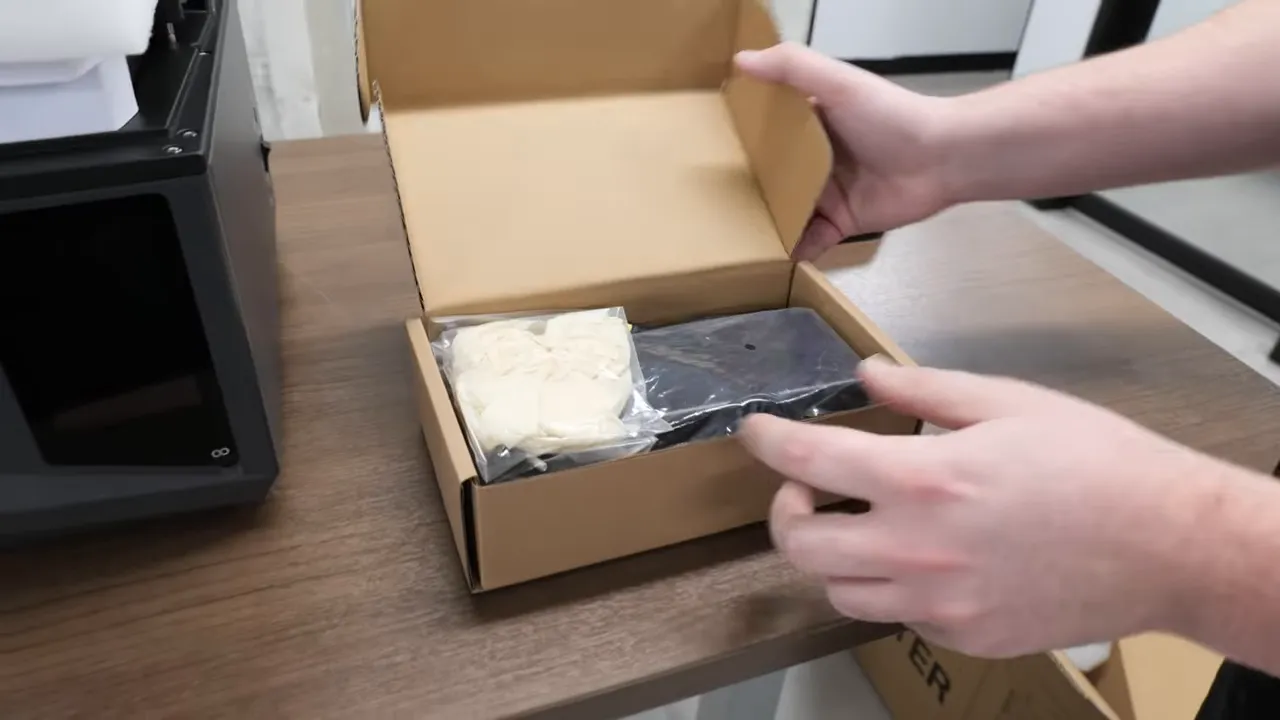
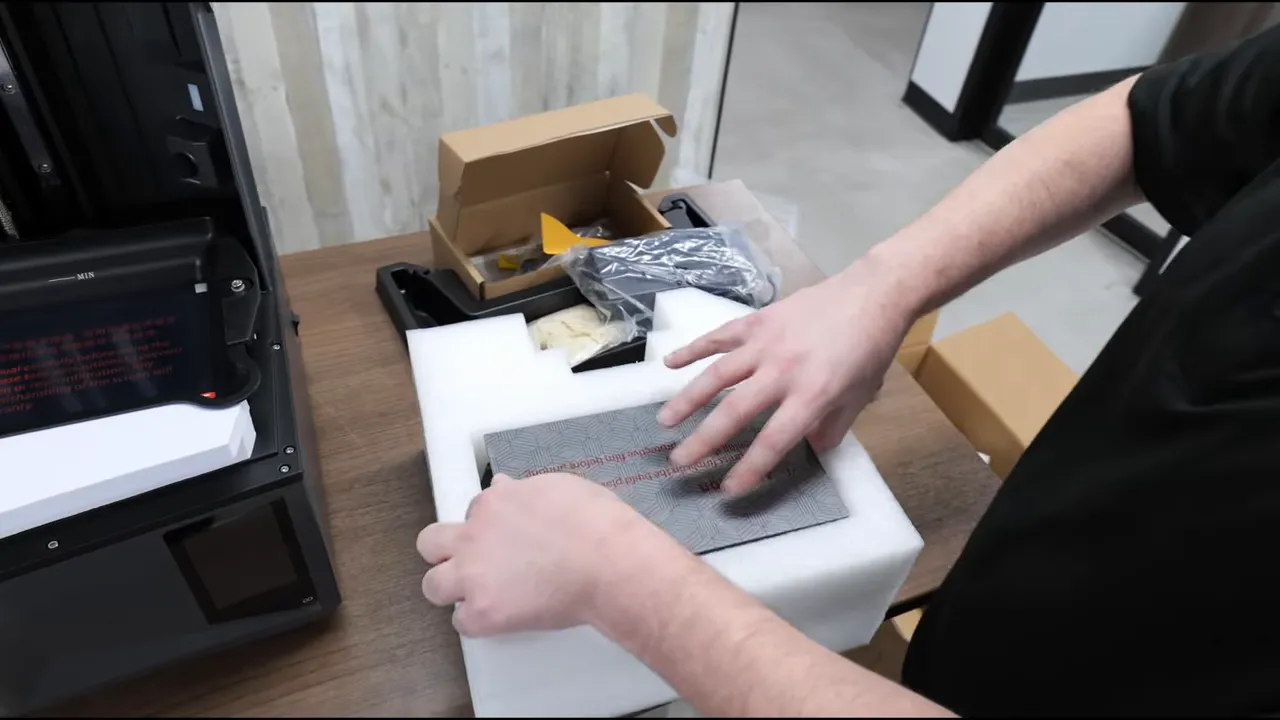
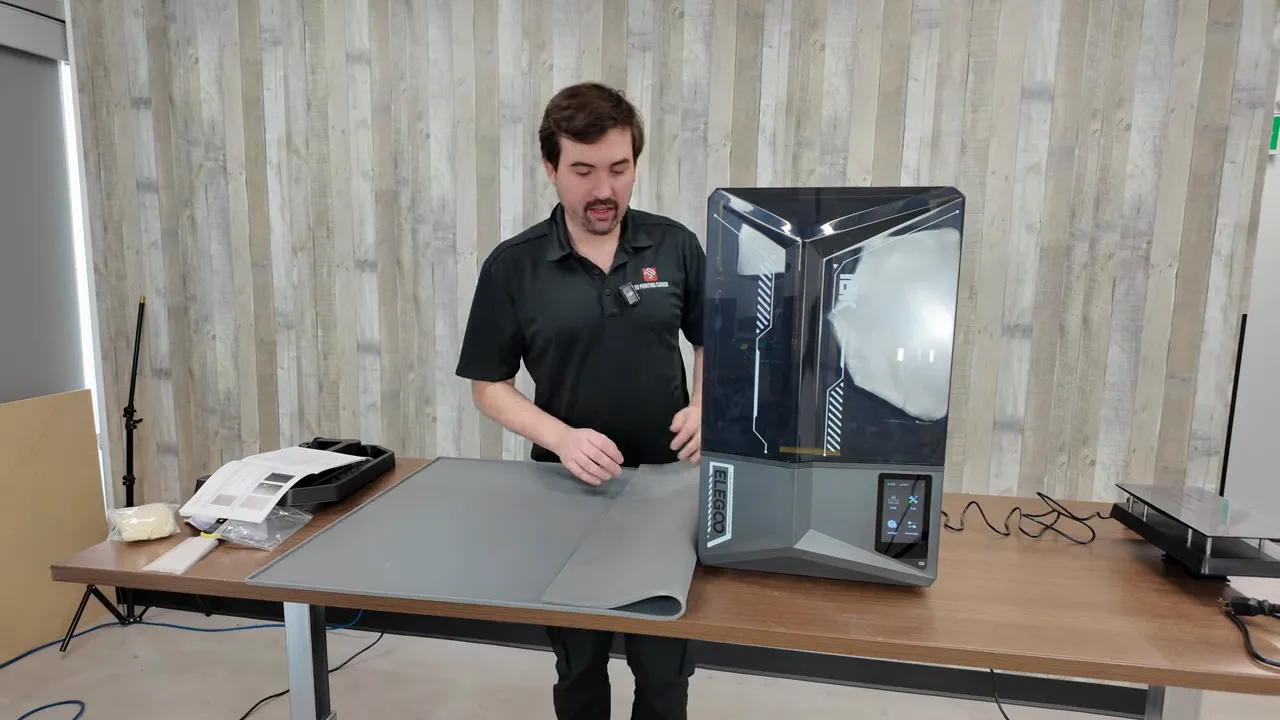
La impresora llegó en gran parte ensamblada y bien embalada. Los insertos de espuma y la disposición compacta hicieron que el desembalaje fuera sencillo. El kit de accesorios contenía todo lo necesario para empezar:
- Cable de alimentación y piezas del conector de alimentación
- Placa de impresión
- Bandeja de goteo
- Guantes y mascarillas desechables (¡úsalos!)
- Raspadores y un embudo de filtrado para resina usada
- Unidad USB y un pequeño kit de herramientas
Una regla básica que ya conocía: siempre use guantes al manipular resina sin curar. El kit facilitó seguir esa regla desde el principio.
Características de la impresora que facilitan la vida
La Saturn 4 Ultra que usé incluye varias funciones pensadas para principiantes que importan durante la configuración y el uso diario:
- Tapa/puerta con bisagras — así no tienes que levantar toda la tapa y dejarla a un lado.
- Cámara con IA — diseñada para detectar fallos durante una impresión.
- Placa de impresión con autonivelación — simplifica la configuración inicial.
- Cubeta basculante/oscillante — ayuda a las separaciones entre capas y puede reducir la succión sobre la FEP/pantalla.
Configuración rápida — lo que realmente hice
Mi proceso de configuración fue sencillo:
- Desembalar e instalar la placa de impresión (se atornilla rápidamente).
- Reemplazar los tornillos del tanque de resina por las perillas incluidas para retirarlo rápidamente.
- Encender la impresora y aplicar cualquier actualización de firmware (muy importante: las actualizaciones de firmware son frecuentes).
- Llenar la cubeta con resina y ejecutar el procedimiento de calibración automática.
Consejo profesional: coloca una alfombrilla protectora debajo de tu espacio de trabajo — la resina puede ensuciar bastante y estas alfombrillas facilitan la limpieza.
Primeras impresiones: conos de calibración
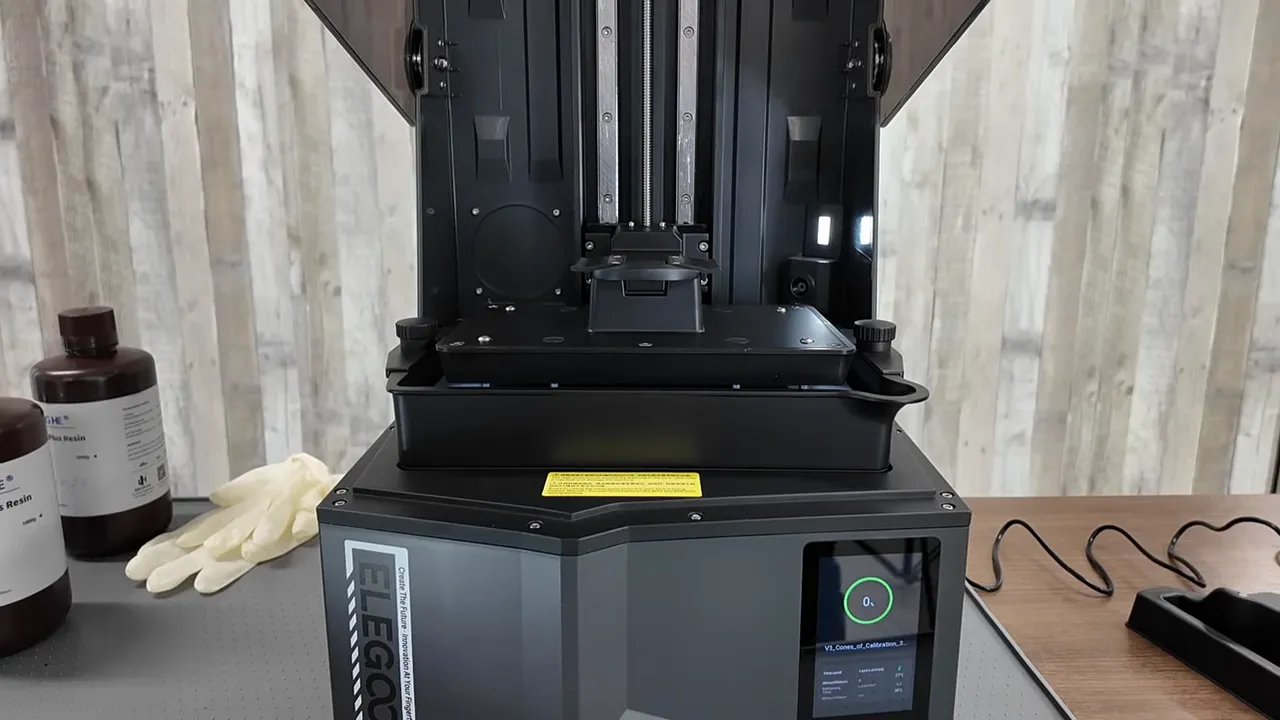
La primera impresión recomendada fue una prueba de "conos de calibración". Piénsalo como un benchy de primera capa o un ajuste PID, pero para calibrar la exposición de resina. Los conos te ayudan a encontrar un valor de exposición en el que los detalles del lado de “éxito” se resuelvan con claridad, mientras que el lado de “fallo” se comporta como se espera.
Mi flujo de trabajo para los conos fue:
- Cargar los conos en mi slicer y enviarlos a la impresora.
- Dejar que la máquina imprima — ten en cuenta que las impresiones en resina son opacas durante la impresión, así que no verás el progreso capa por capa como con FDM.
- Lavar la impresión para eliminar la resina sin curar, secarla y luego curarla por completo en una cámara UV (o al sol) para manipularla.
- Inspeccionar los conos y ajustar la exposición si es necesario (bajé un poco la exposición porque se imprimieron un par de conos de “fallo” cuando no debían).
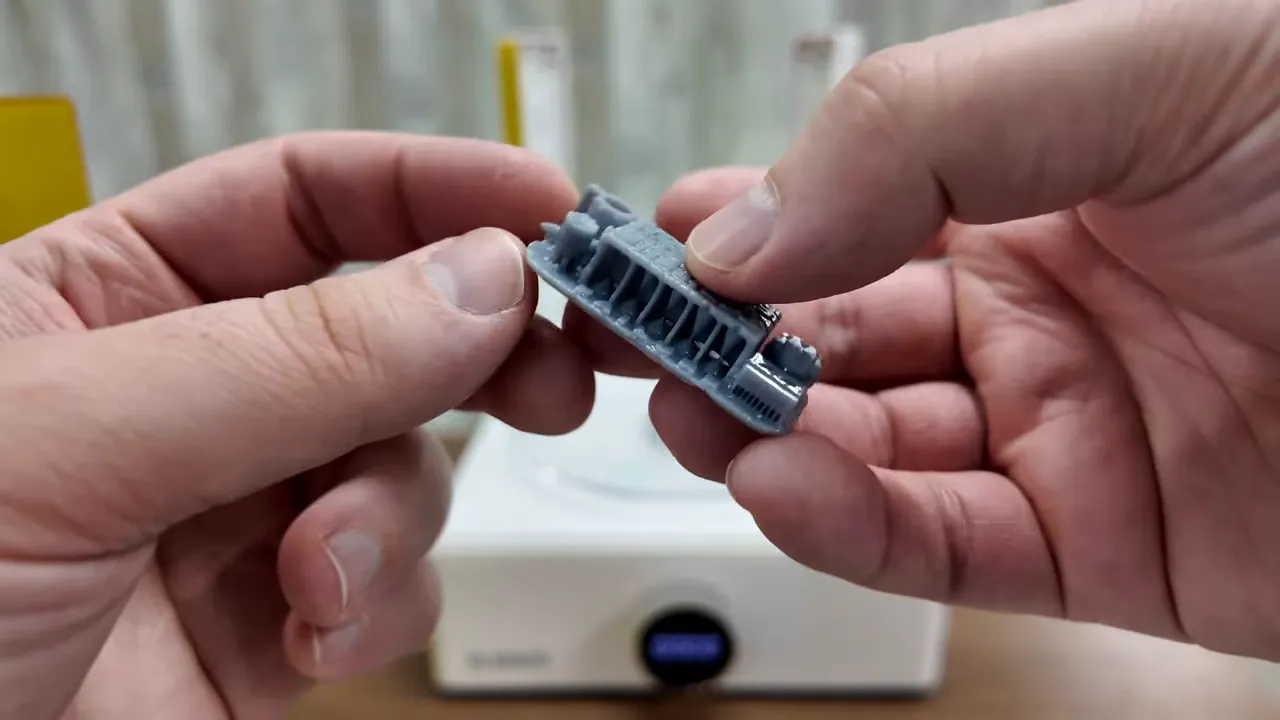
El ajuste de exposición es una de las principales cosas en las que enfocarse al principio — una vez que tengas una base sólida, podrás afinar para distintas resinas, alturas de capa y necesidades de detalle.
Preparando mi primer modelo detallado
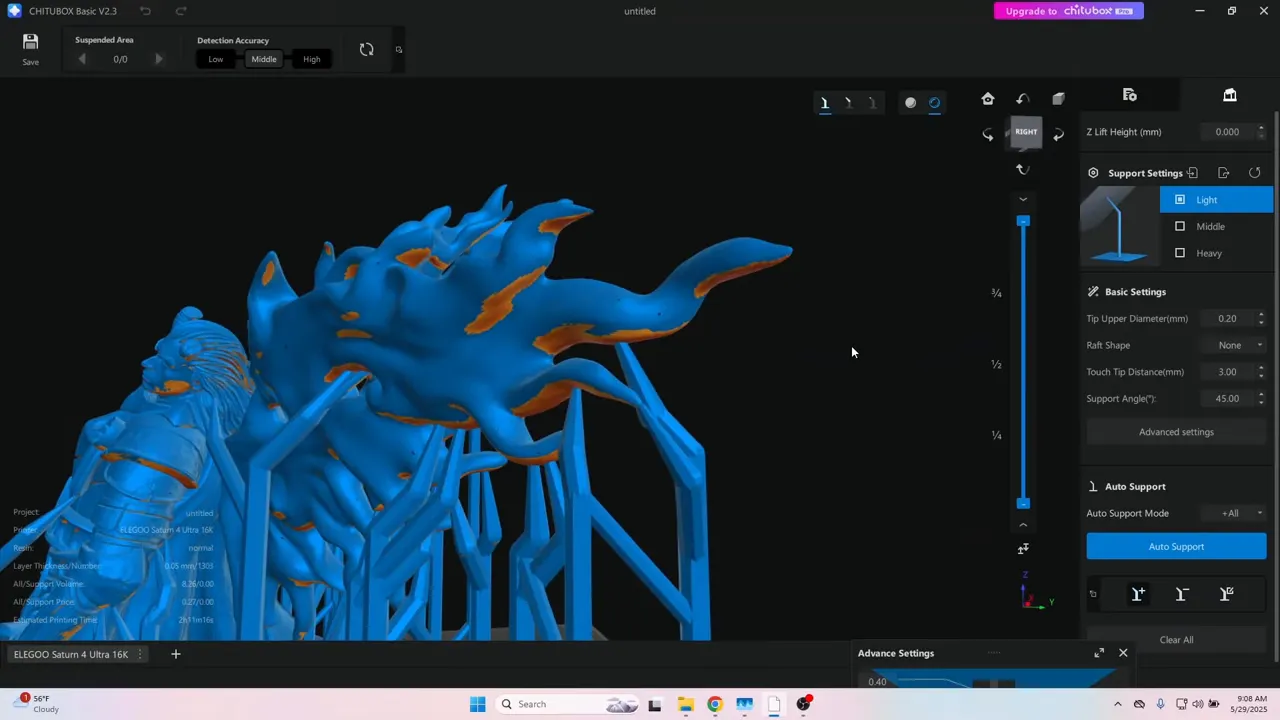
Para mi primer proyecto real elegí una miniatura de Flesh of Gods. Muchos modelos vienen pre-soportados, pero revisé y agregué soportes donde pensé que ayudarían:
- Debajo de las alas y de las partes largas y delgadas (como espadas).
- Debajo de los pies — los puntos de contacto pequeños pueden fallar sin soportes adecuados.
- Considera ahuecar los modelos más grandes para ahorrar resina y reducir la succión; si los ahuecas, añade orificios de drenaje/ventilación para evitar resina atrapada sin curar en el interior.
Con la resina, hay una lucha entre la placa (que quiere sostener la impresión) y la pantalla/FEP (que la libera). Demasiada adhesión y las piezas no se despegarán con limpieza; demasiado poca y no se pegarán a la placa de impresión. La colocación de los soportes y el ajuste de exposición ayudan a equilibrar eso.
Impresión y posprocesado
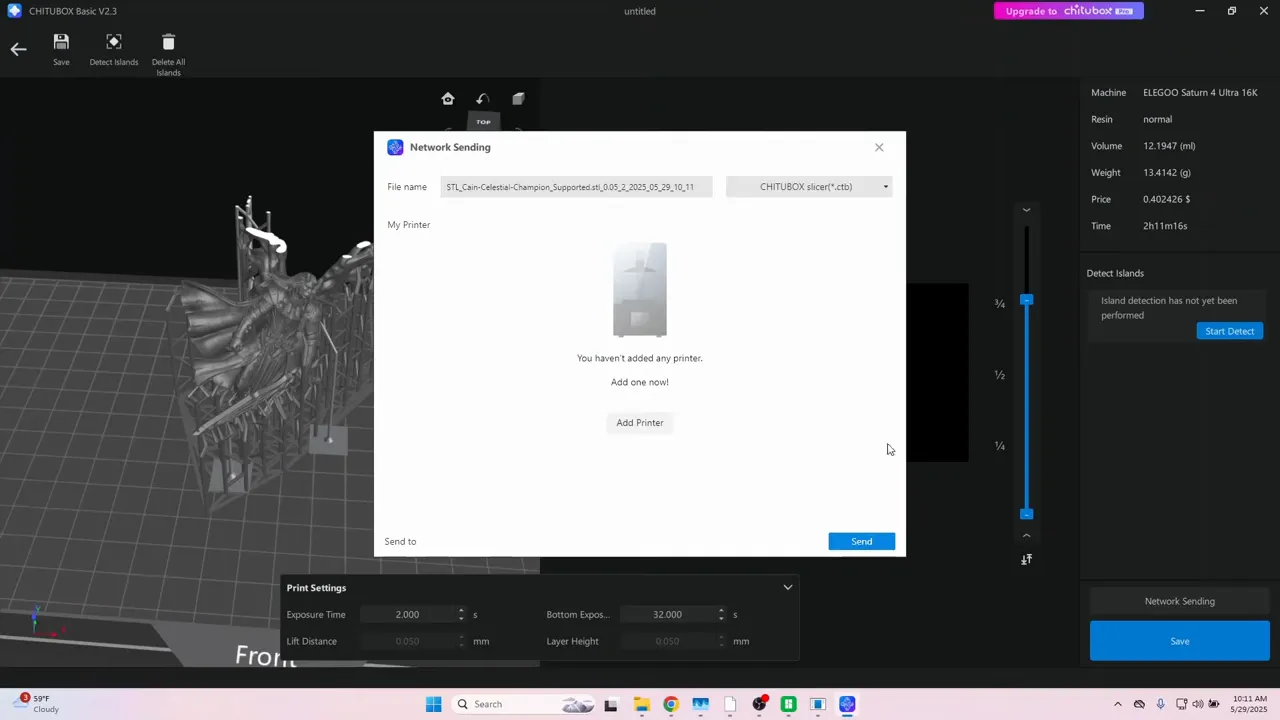
Una vez laminado, aproveché la carga inalámbrica de la impresora y envié el trabajo. La impresión se completó en un par de horas y, para mi ojo inexperto, parecía prometedora.
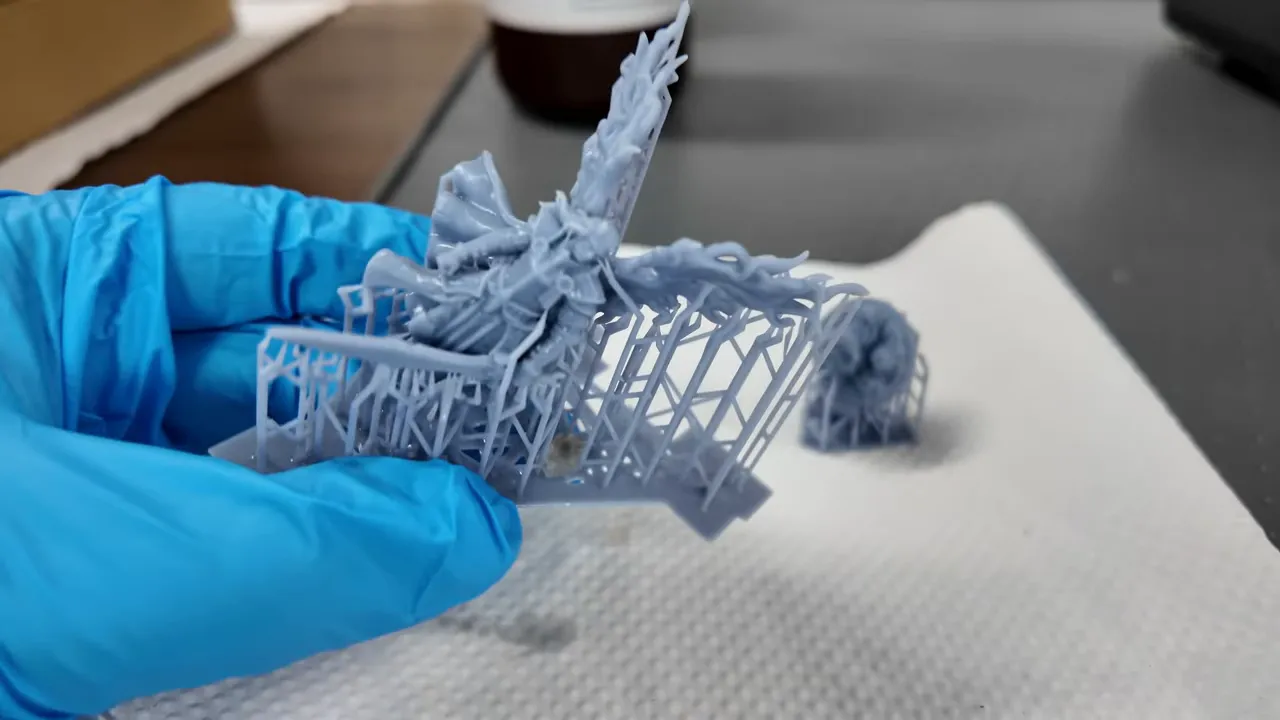
Pasos de posprocesado que seguí:
- Retirar la impresión y lavarla en una cubeta de limpieza para eliminar la resina superficial sin curar.
- Dejar que la pieza se seque brevemente (importante antes del curado).
- Retirar los soportes antes del curado final — curar con los soportes puestos puede hacer que sea mucho más difícil quitarlos después.
- Curar completamente la pieza en una cámara UV (o con sol/lámpara UV). Usa protección ocular si utilizas luz UV directa.
Impresiones: detalle, pintura y dificultad
Los resultados fueron impresionantes. La resina ofrece niveles de detalle superficial que son extremadamente difíciles de conseguir con FDM — las líneas de capa prácticamente desaparecen, las texturas finas y los pequeños detalles se ven con mucha nitidez, y los soportes normalmente se retiran limpios con daños mínimos.
Para los aficionados que pintan miniaturas (Dungeons & Dragons, Warhammer, etc.), las impresiones en resina suelen estar listas para imprimación y pintura con mucha menos preparación que las piezas FDM, que normalmente requieren mucho lijado y relleno.
"No hay líneas de capa en absoluto. Simplemente no existen."
¿Fue más difícil imprimir en resina que con FDM? No realmente. Es diferente e implica algunos pasos más en el procedimiento (equipo de seguridad, lavado, curado), pero no es estrictamente más difícil. Sigue los procedimientos, mantén limpio tu espacio de trabajo y usa el EPP suministrado — guantes y mascarilla — y el flujo de trabajo es sencillo.
Seguridad y consejos prácticos
- Usa guantes de nitrilo cada vez que toques resina sin curar.
- Usa mascarillas o respiradores cuando se recomiende — algunas resinas pueden tener olor fuerte o ser irritantes.
- Usa una alfombrilla para reducir derrames y facilitar la limpieza.
- Retira los soportes antes del curado final cuando sea posible.
- Al curar con luz UV, evita la exposición directa de los ojos y usa protección ocular adecuada.
- Ahueca los modelos grandes y añade orificios de drenaje para evitar bolsas de resina sin curar y ahorrar material.
- Instala siempre las actualizaciones de firmware antes de comenzar a imprimir — pueden corregir problemas importantes.
Reflexiones finales y recomendación
Después de mi primera experiencia con la Elgus Saturn 4 Ultra 16K, estoy convencido de probar más proyectos en resina. La configuración fue rápida, la curva de aprendizaje manejable y la calidad de impresión está muy por encima de piezas FDM comparables en detalle fino. Si has estado pensando en comenzar con la impresión en resina — o en actualizarte — este modelo ofrece una entrada accesible y apta para principiantes, al mismo tiempo que produce resultados de calidad profesional.
Si vienes de FDM, espera algunos pasos nuevos en tu flujo de trabajo, pero no dejes que la complejidad aparente te frene. Sigue las precauciones de seguridad, ajusta tu exposición con pruebas sencillas como los conos de calibración, y obtendrás resultados extraordinarios.
¿Quieres probar lo que hice?
- Empieza con una impresión de calibración (conos) para ajustar la exposición.
- Revisa y añade soportes según sea necesario — especialmente para alas, espadas y pies pequeños.
- Lava, seca, retira los soportes y luego cura con UV.
- Aplica imprimación y pinta — los resultados suelen estar listos de inmediato.
Feliz impresión — no veo la hora de hacer más proyectos en resina y seguir perfeccionando el flujo de trabajo.
Recursos adicionales y lista de verificación
No se proporcionaron enlaces externos con tu solicitud, así que aquí tienes recursos breves y fáciles de buscar, y una lista práctica que puedes añadir a la publicación o usar para encontrar guías autorizadas en línea.
- Términos de búsqueda sugeridos: "Saturn 4 Ultra manual", "resin printing safety", "exposure calibration cones", "how to hollow models drain holes", "resin post-processing UV cure"
-
Lista de verificación rápida:
- Usa guantes de nitrilo y una mascarilla/respirador (cuando se recomiende)
- Coloca una alfombrilla protectora debajo de tu espacio de trabajo
- Instala las actualizaciones de firmware antes de imprimir
- Ejecuta conos o pruebas de exposición para obtener una base
- Ahueca los modelos grandes y añade orificios de drenaje para ahorrar resina
- Lava, seca, retira los soportes y luego cura con UV
-
Consejos de solución de problemas:
- Problemas de adhesión: ajusta la exposición o añade/retira soportes; comprueba la nivelación de la plataforma de impresión
- Impresiones que no se despegan: reduce la exposición o modifica la geometría de los soportes/de contacto
- Impresiones curadas pegajosas: prolonga el tiempo de curado UV o comprueba la intensidad de tu fuente UV
- Defectos visibles en detalles finos: reduce la altura de capa o prueba con una resina diferente
Preguntas frecuentes (breves)
- ¿La resina es más dura que FDM? Diferente, no necesariamente más dura: requiere más pasos (seguridad, lavado y curado), pero es accesible con el EPP y los procedimientos adecuados.
- ¿Puedo curar al sol? Sí, pero los tiempos de curado varían; las cámaras y lámparas UV son más constantes y rápidas.
- ¿Cómo ahorro resina? Vacía los modelos grandes y añade orificios de drenaje para evitar que quede resina sin curar atrapada.
Usa los términos de búsqueda sugeridos arriba para encontrar manuales oficiales, fichas de datos de seguridad (SDS) y guías de la comunidad que coincidan con tu impresora y la resina elegida para 3d Printers in the USA.